An AI health companion that triages symptoms before you ever reach a doctor
AI HealthLink is a concept app for Canadian healthcare: AI symptom triage, a digital health vault, and booking for virtual or walk-in care. I designed it end to end, on mobile and tablet, as a solo project.
RoleSolo Product Designer
TypePersonal concept project
Timeline4 weeks
PlatformiOS Mobile + Tablet
ToolsFigma
17Screens designed
8Triage steps
3Risk levels
2Form factors
4 wksResearch → full UI kit
Why this exists
This is a solo concept project. I designed it to work through a specific problem: how do you build a triage and intake flow that reduces cognitive load for anxious patients without stripping out the clinical detail that healthcare providers actually need?
The Vision
Turning a high-stress process into a calm one
To bridge the gap between complex medical logistics and patient-centric care by creating a unified digital health ecosystem.
Getting care in Canada usually means phone tag, a paper health card, and a waiting room. The idea here is to put the boring logistics in one place so the stressful part gets calmer: check a symptom with AI, keep your provincial health card and records in one vault, and book whichever kind of care the situation actually needs.
AI Symptom TriageDigital Health VaultVirtual & Walk-in ConsultsWearable IntegrationTablet Adaptation
My role: everything. Research framing, flows, wireframes, the high-fidelity UI, the component sheet, the tablet study. On a personal project no decision is inherited, so every pattern here had to earn its place.
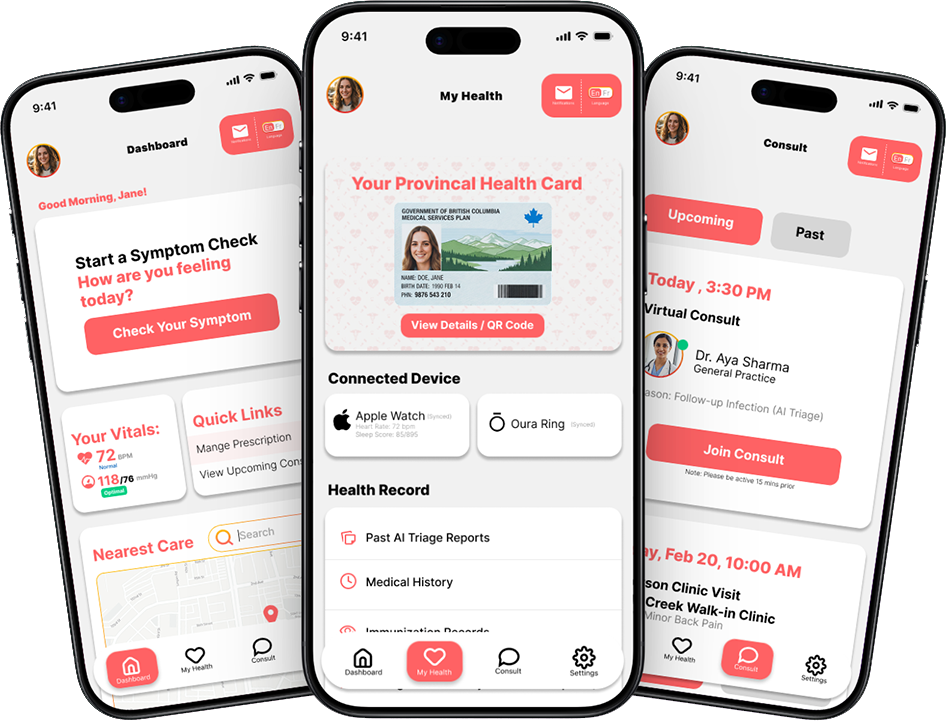
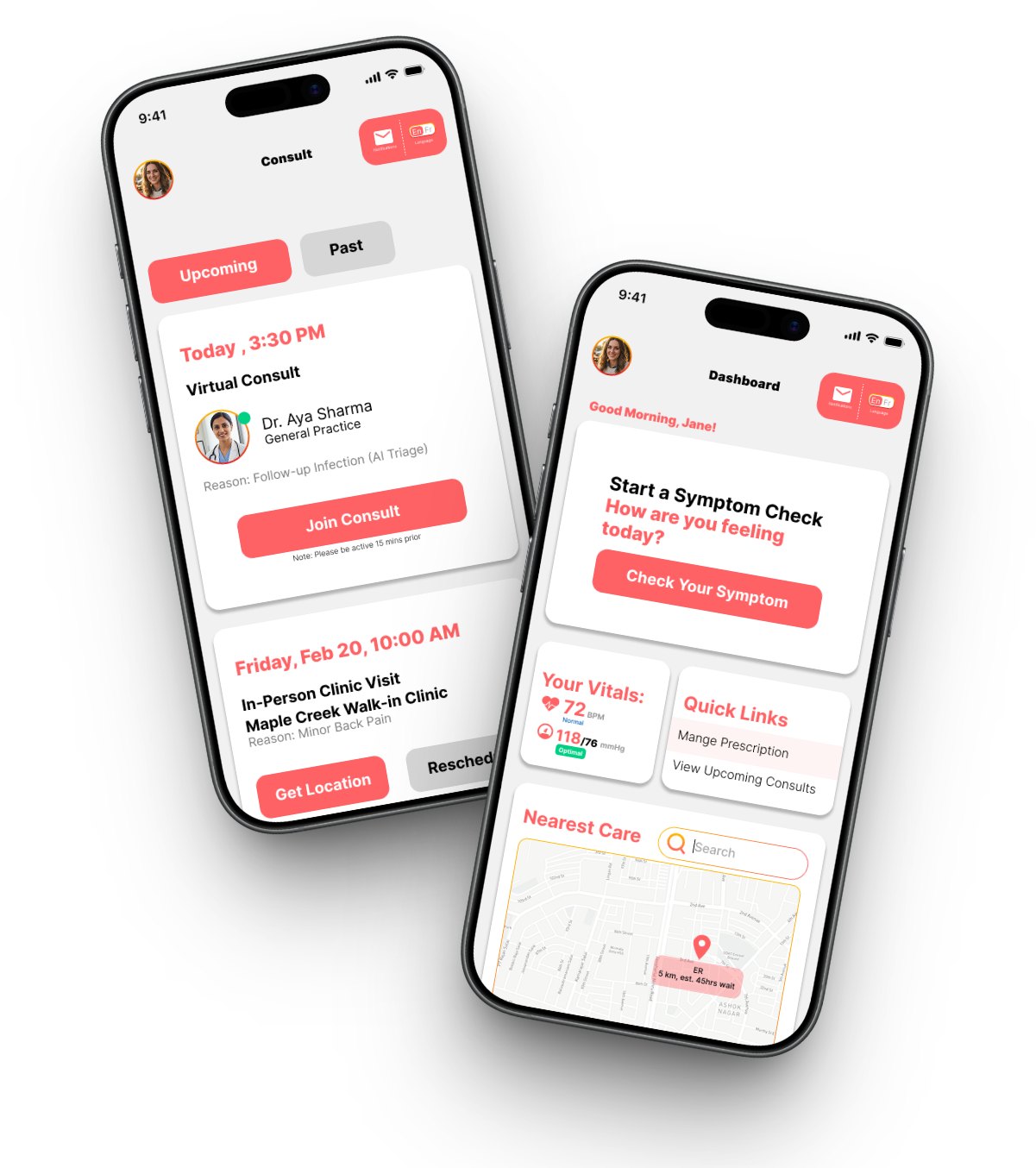
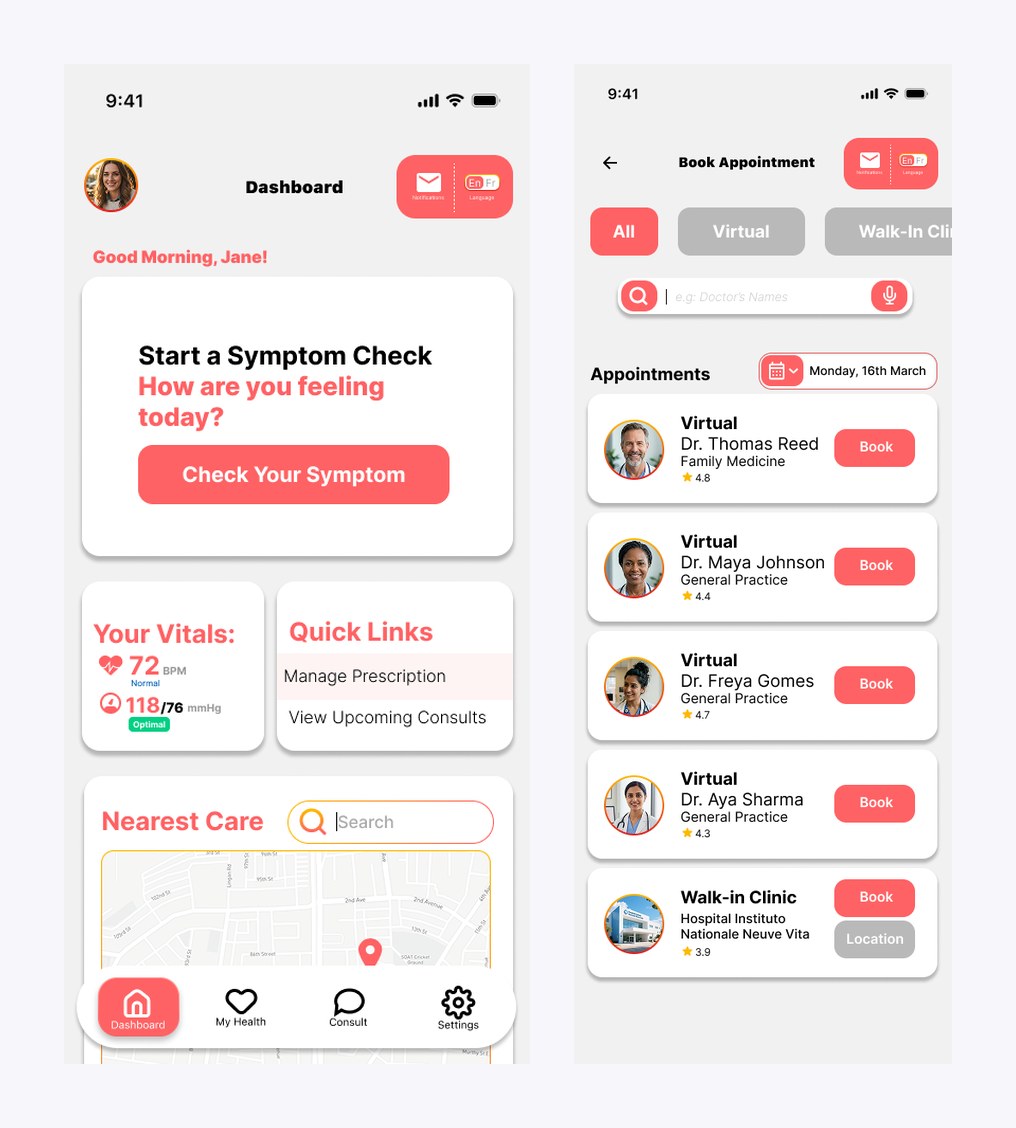
Consults and the dashboard, the two screens that carry most of the product's weight.
The Challenges
Three problems that don't forgive sloppy design
Health apps fail differently than other apps: the cost of a confusing screen isn't churn, it's a delayed diagnosis. I framed the project around three challenges before drawing anything:
1
Ensuring reliable AI medical guidance
The app relies on AI for symptom triage and possible diagnoses. The hard part is accuracy without a physical examination. A wrong suggestion could delay critical care and create real legal liability.
2
Integrating complex health data systems
The platform must connect with hospital wait-time databases and wearable health devices. Real-time, accurate synchronization across fragmented healthcare infrastructure is a major technical constraint that shapes the UI.
3
Designing for safety, privacy, and distress
People may open this app while they are scared or in pain, so the UX has to be simple and hard to get wrong. It also has to handle sensitive health data under PIPEDA the whole time.
The Process
Four weeks, research to UI kit
Week 1 · Research & framingWrote the vision and the three challenges above. Studied existing symptom checkers and telehealth apps, clustered what I found into affinity notes, and sketched the personas the product serves.
Week 2 · Architecture & flowsDesigned the user flows: the AI triage funnel, the booking paths (virtual vs. walk-in), and the health vault. Wireframed the core screens and locked the four-tab information architecture: Dashboard, My Health, Consults, Settings.
Week 3 · High-fidelity mobile UIBuilt the 15 mobile screens: the triage flow with its emergency gate, the dashboard, the health vault, consults, and booking. Also built the shared component sheet with navigation states and form controls.
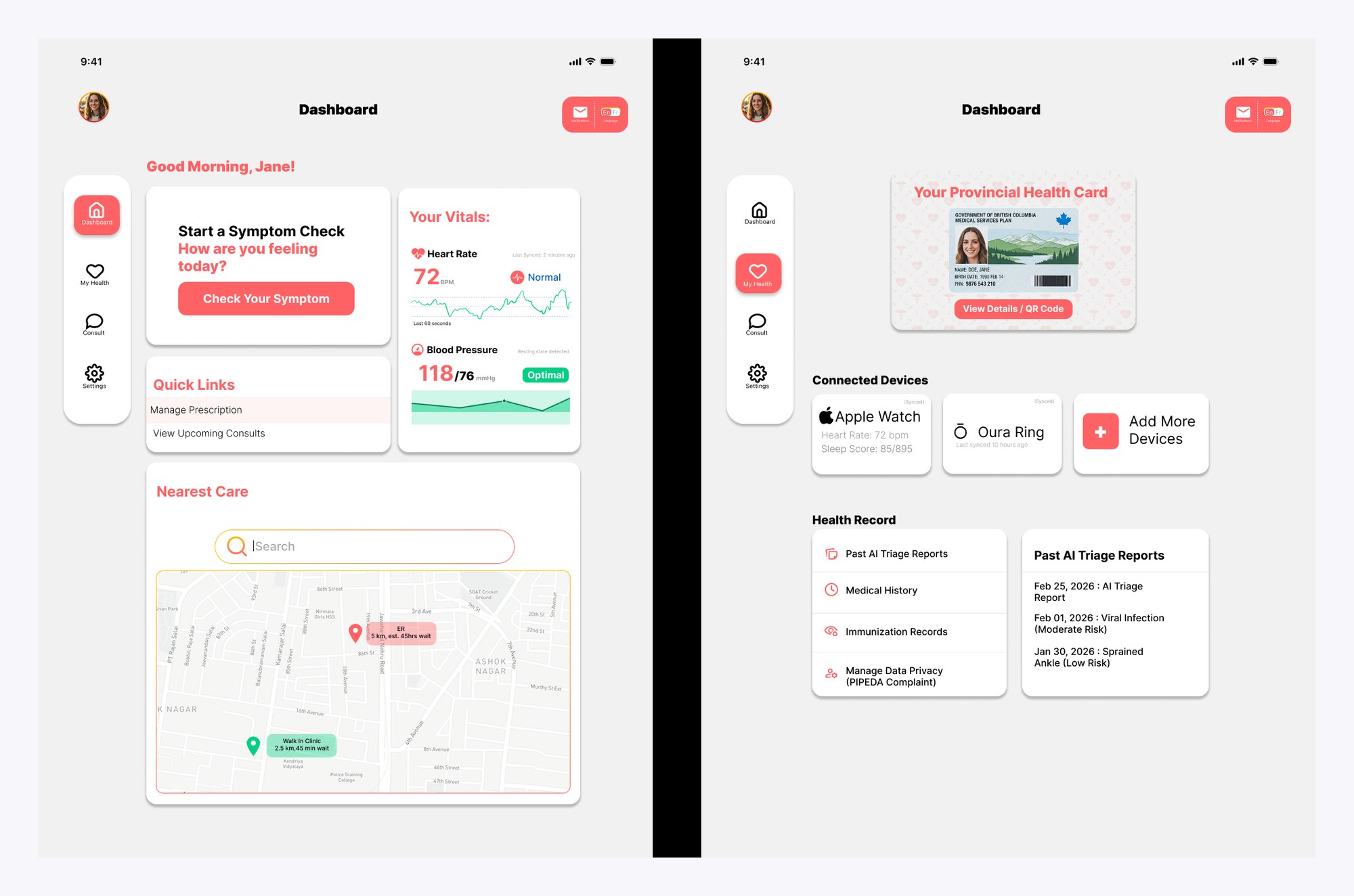
Week 4 · Tablet adaptation studyAdapted the dashboard and health vault to tablet: bottom navigation becomes a persistent left rail, the 'Nearest Care' map expands into an interactive panel, and health records adopt a master-detail pattern that uses the extra width instead of stacking.
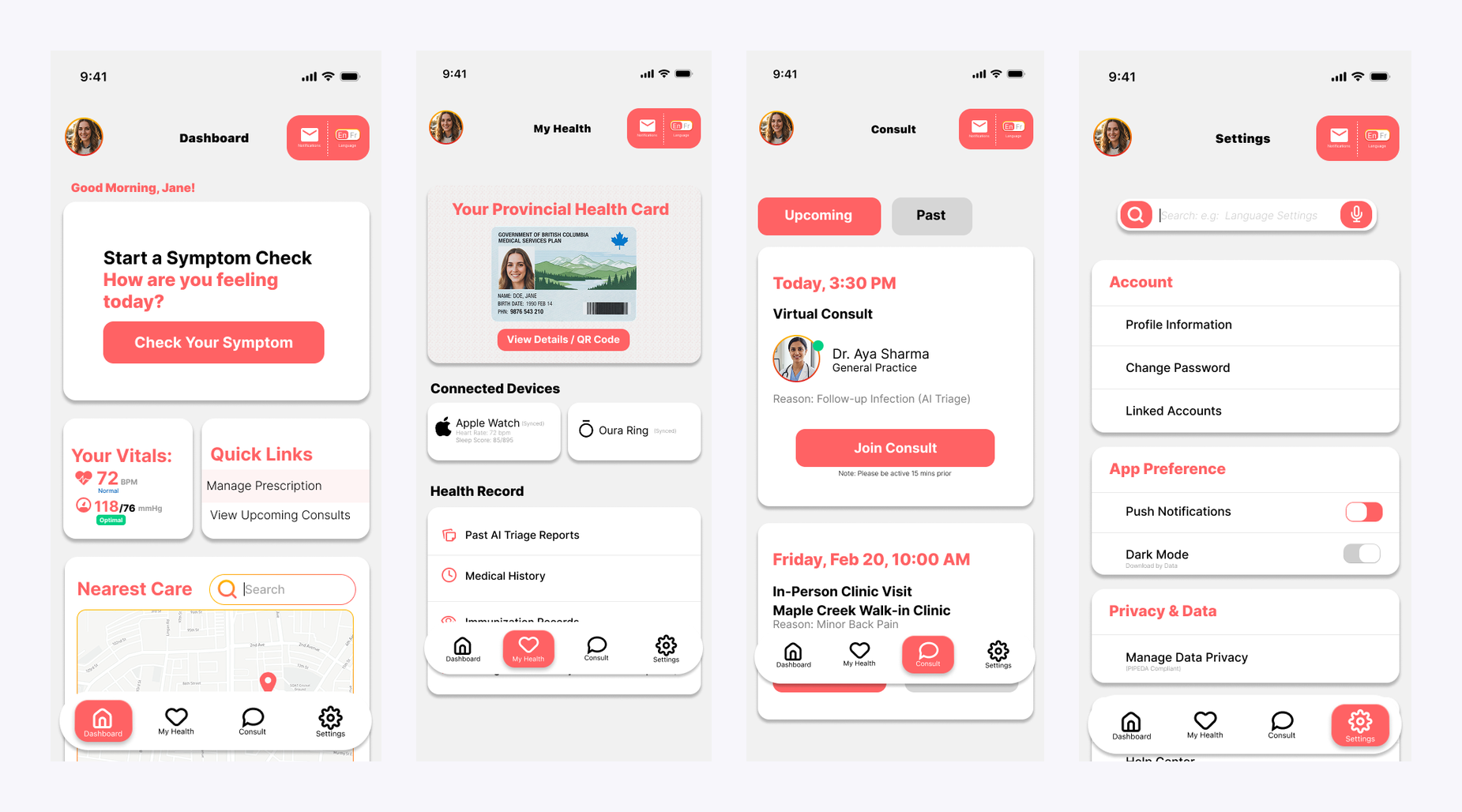
The four-tab core: Dashboard, My Health (the health vault), Consults, and Settings.
Key Decisions
Six decisions, one constraint
Every decision in this section was shaped by the same constraint: the person using this interface may be sick, scared, or in physical discomfort. Comfortable users can tolerate ambiguity. Stressed users cannot.
1 · An emergency gate before the AI says a word
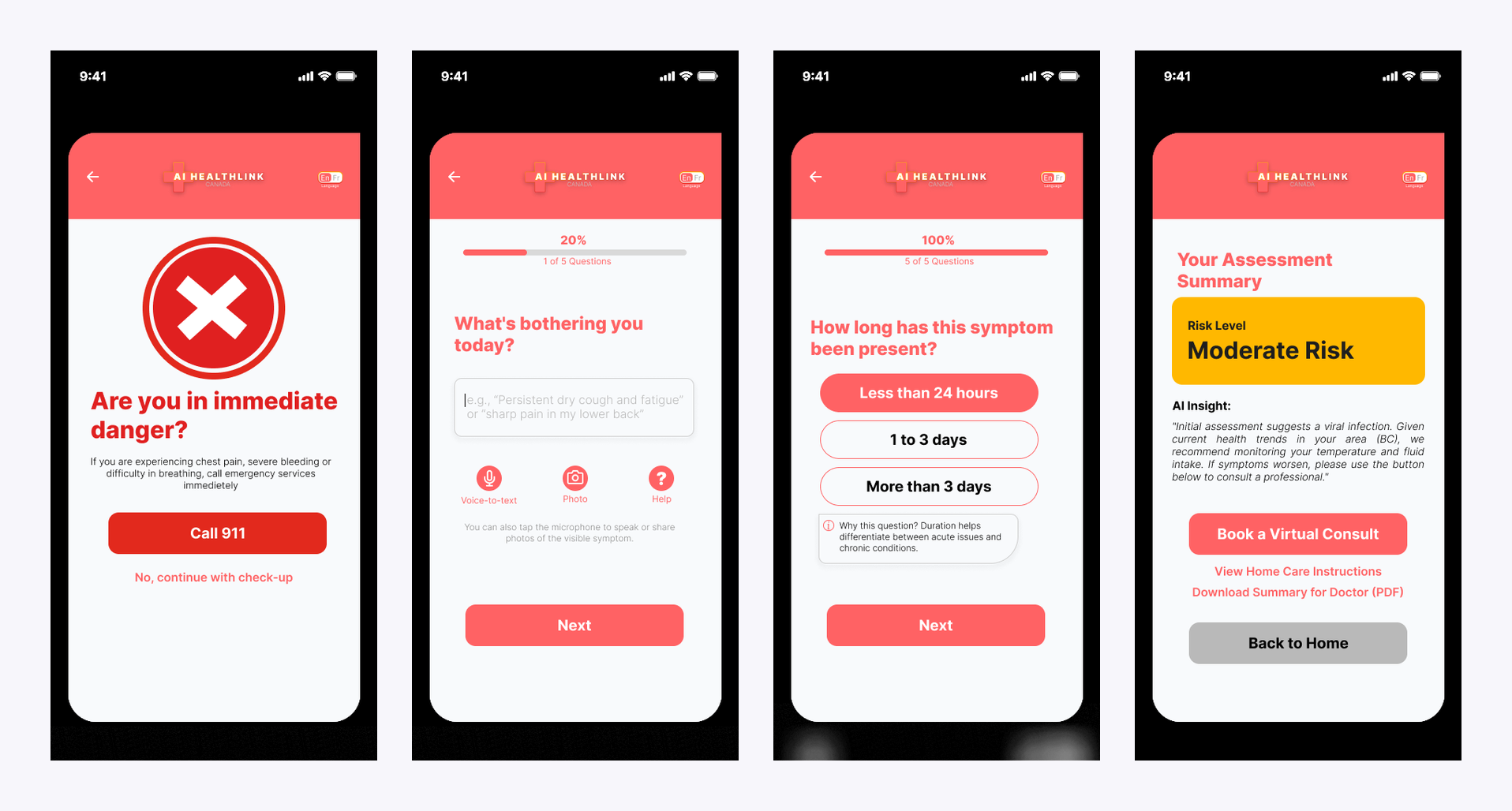
The first screen of the triage flow doesn't ask about symptoms. It asks "Are you in immediate danger?" and puts a full-width Call 911 button under the question. AI triage is for the ambiguous middle, not emergencies, and the safest place to make that distinction is before the conversation starts. Only after the user opts to continue does the check-up begin.
2 · One question per screen, and more than one way to answer
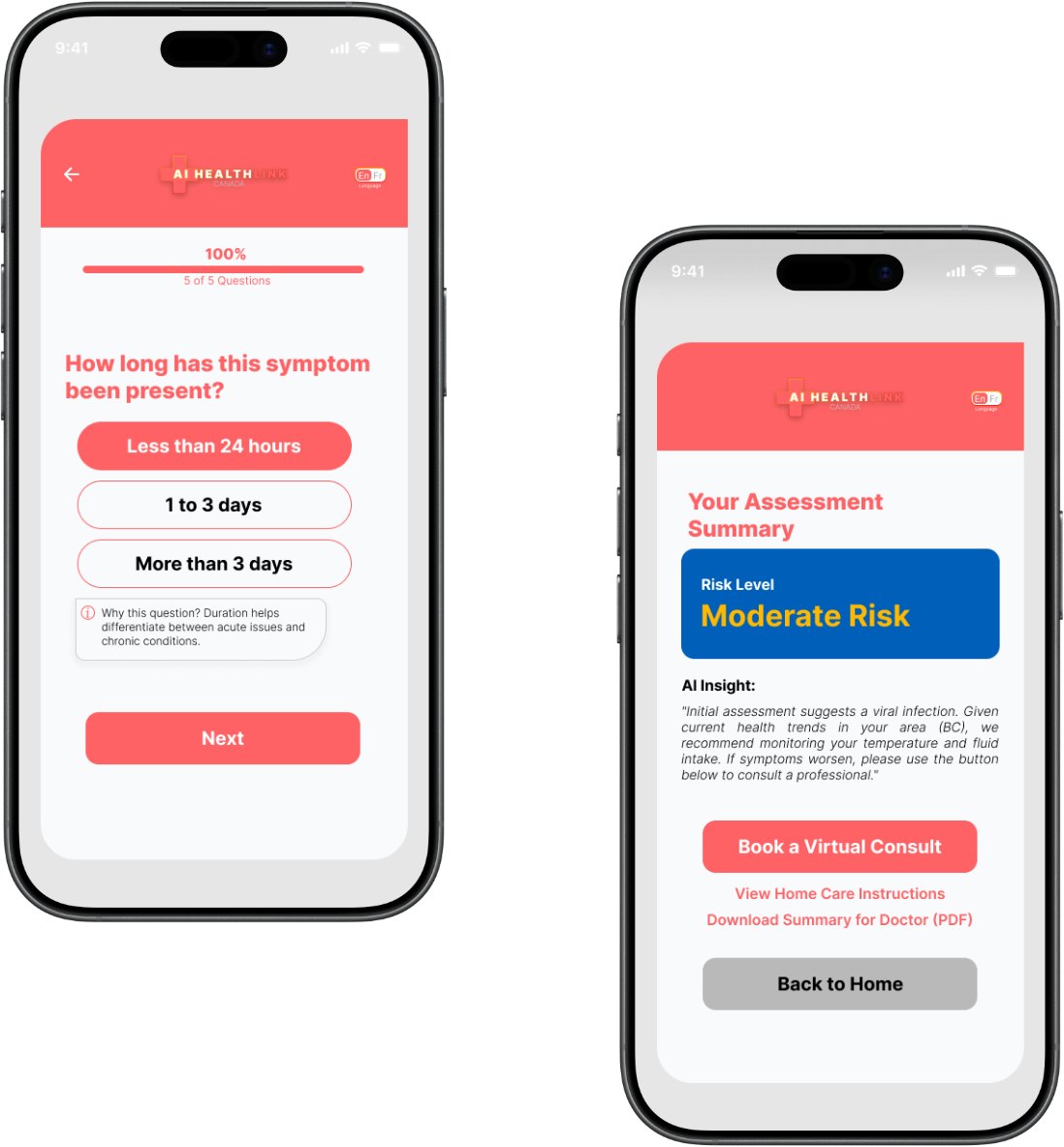
The check-up runs five questions, each on its own screen with a progress bar ("2 of 5 Questions") so the commitment is always visible. Because users may be typing through pain or panic, the symptom description field accepts voice-to-text and photos of visible symptoms, not just typed input. Checkbox questions cover associated symptoms, health history, severity, and duration. Everything past the first question is a tap target rather than an essay.
The assessment ends with a risk level, a plain-language AI insight explaining the reasoning ("Initial assessment suggests a viral infection… we recommend monitoring your temperature and fluid intake"), and three honest exits: book a virtual consult, view home-care instructions, or download a PDF summary for your doctor. The PDF is the one I care about most. It admits the AI is a triage tool rather than a doctor, and it makes handing the case to a real one easy.
The last question explains why it's asking. The result explains what the AI concluded and what to do next.
4 · Triage context follows you into the booking
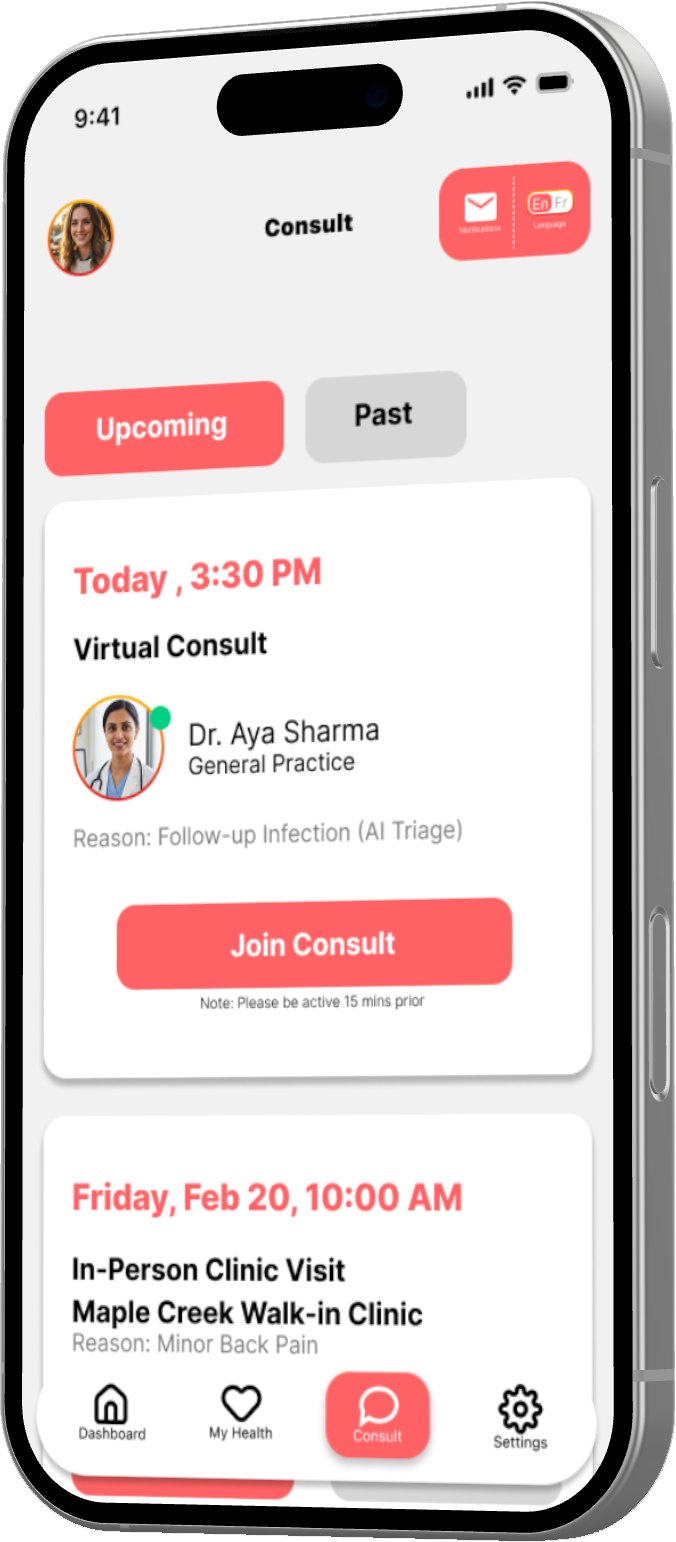
When an assessment leads to an appointment, the reason travels with it: consult cards read "Reason: Follow-up Infection (AI Triage)". The clinician sees why the patient is coming before the call starts, and the patient never re-explains themselves. Booking itself is filterable by All / Virtual / Walk-in, with provider ratings and one-tap booking.
The consult card carries the AI triage reason, so the patient never re-explains themselves.
5 · A dashboard that leads with the riskiest task
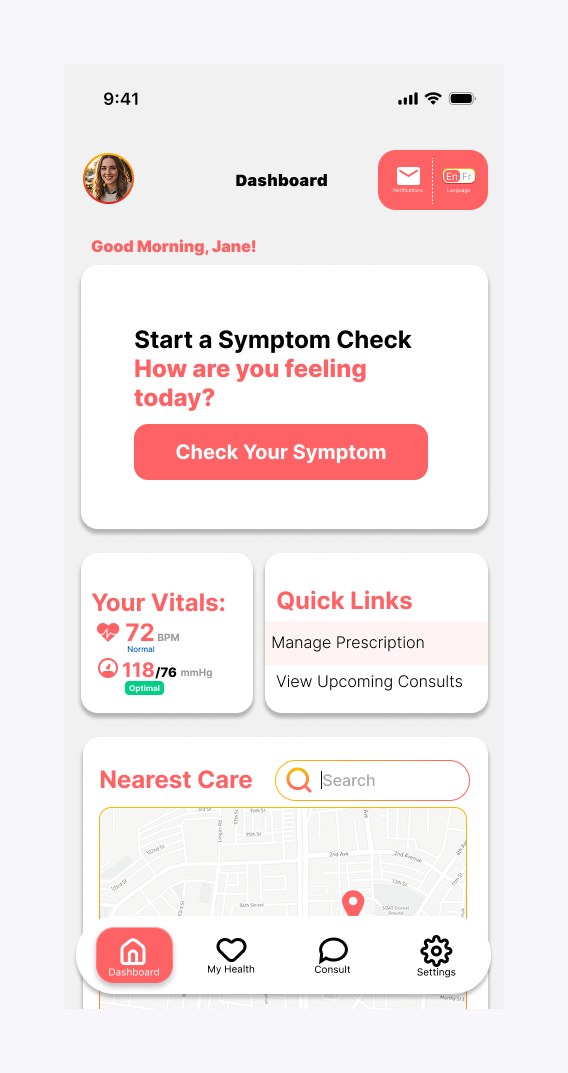
The home screen gives the symptom check the hero slot, because it's the action with the highest stakes and the most hesitation. Below it: live vitals pulled from connected wearables (Apple Watch, Oura Ring), quick links to prescriptions and consults, and a 'Nearest Care' map with real walk-in distances. The health vault holds the provincial health card with a QR code for clinic check-ins, past AI triage reports, and immunization records.
The dashboard: symptom check on top, live vitals and nearest care below.
6 · Scaling to tablet without stretching the phone
The tablet study reworks the architecture instead of inflating it: bottom navigation becomes a persistent left rail so primary sections stay visible; stacked dashboard cards reflow into a grid; vitals gain historical charts instead of single numbers; and health records move to a master-detail pattern, list on the left and full record on the right, which removes a whole screen per record.
Tablet adaptation: nav rail, grid reflow, charted vitals, and master-detail records.
What the four weeks produced:
A 17-screen mobile UI: the triage flow with its emergency gate, the dashboard, the health vault, consults, and booking.
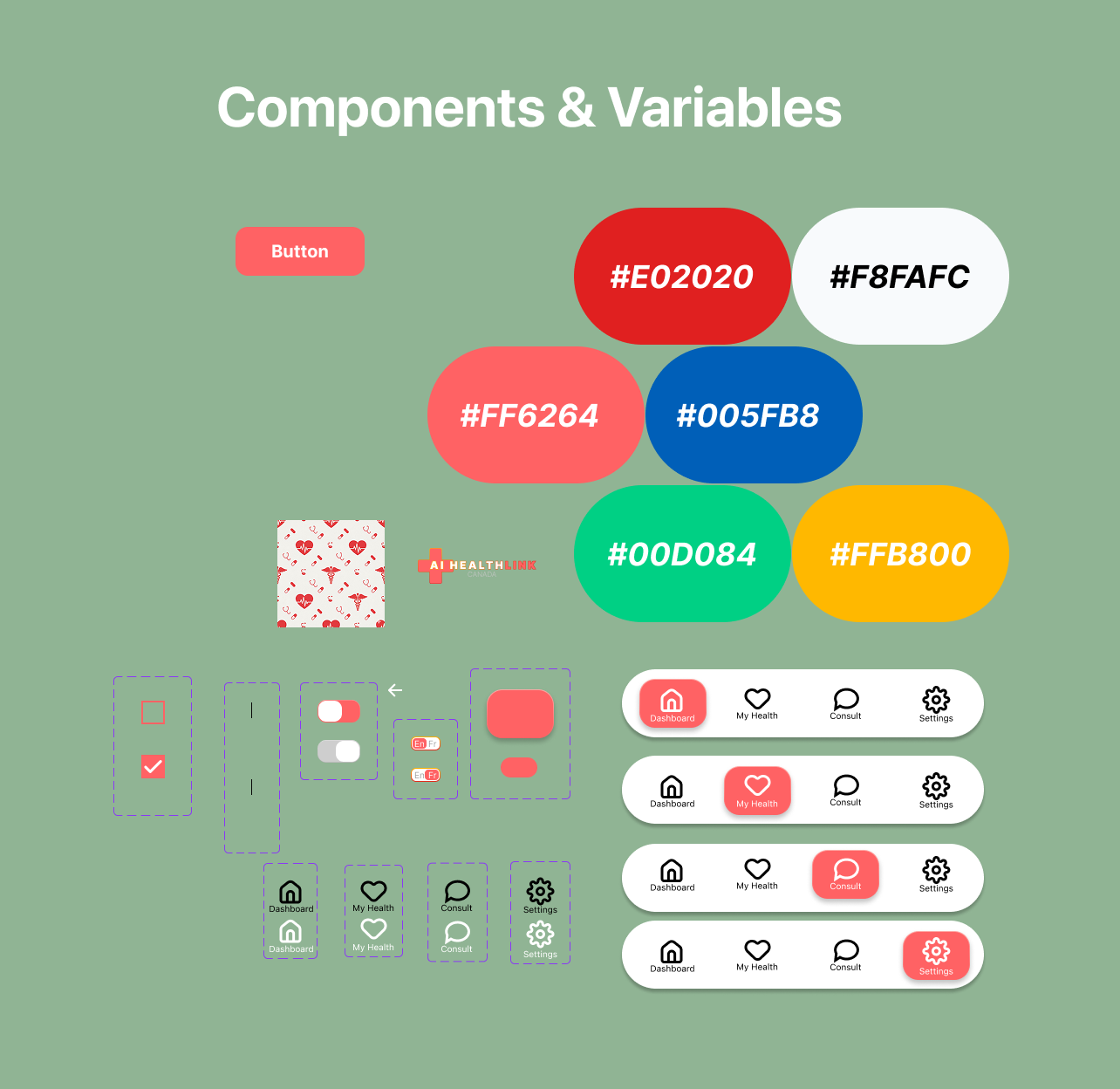
A component sheet (palette, buttons, form controls, all four navigation states) that keeps the 17 screens consistent.
A responsive tablet study that documents the reasoning behind each layout change, not just the redrawn screens.
Dashboard to booking, the path most sessions take.The component sheet: palette, controls, and the four navigation states behind every screen.
The Self-Audit
I closed the project the way a design lead would
Before calling it done, I audited my own file against usability, consistency, and WCAG criteria, the same way I'd review someone else's work. The honest findings:
Red is doing too many jobs
The coral brand color also signals emergencies, primary actions, and section headers. In a medical product, severity needs its own color system. The next revision separates brand, action, and alert colors, and moves risk levels onto a green/amber/red scale.
Contrast debt on primary buttons
White text on the coral primary buttons measures roughly 2.9:1, short of the 4.5:1 WCAG AA requirement. Fixing it at the component level is one change; at the screen level it's seventeen.
Copy needs a trust pass
Spelling slips ("Provincal," "Mange Prescription") and inconsistent terminology ("Consult" vs. "Consults") would be small issues anywhere else. In a health app they erode the exact trust the AI features depend on.
Tokens before screens, next time
Colors live as raw hex values rather than Figma variables, and frame heights drift between screens. Formalizing tokens first would have prevented the drift, and it would have made the promised dark mode a real option instead of a settings toggle.
Auditing your own file stings exactly as much as it should. It's also the fastest design education I've found. Every finding above is now a day-one checklist item for the next project.
Reflection
The gaps I'd close first
Test the triage flow with real people
The one-question-per-screen pattern and the emergency gate are reasoned but untested. Five usability sessions would confirm whether distressed users actually read the gate or reflexively tap through it.
Ground the AI in clinical constraints
I'd consult published triage protocols like CTAS so the risk levels and question order map to clinical reality, not just UX logic. That's the difference between a concept and a credible product.
Design the failure states
What happens when the AI is uncertain, the wearable disconnects, or the wait-time data is stale? The unhappy paths are where a health product earns or loses trust, and they deserve the same fidelity as the happy ones.
Prototype the transitions
The flow exists as static frames. Prototyping the triage funnel would expose pacing problems, like whether the 'Processing…' moment reads as reassurance or as anxiety.